

Explore our simple step-by-step tech guides & drivers.
We take complex hardware settings and technical manuals and explain them in clear, simple language with zero jargon.
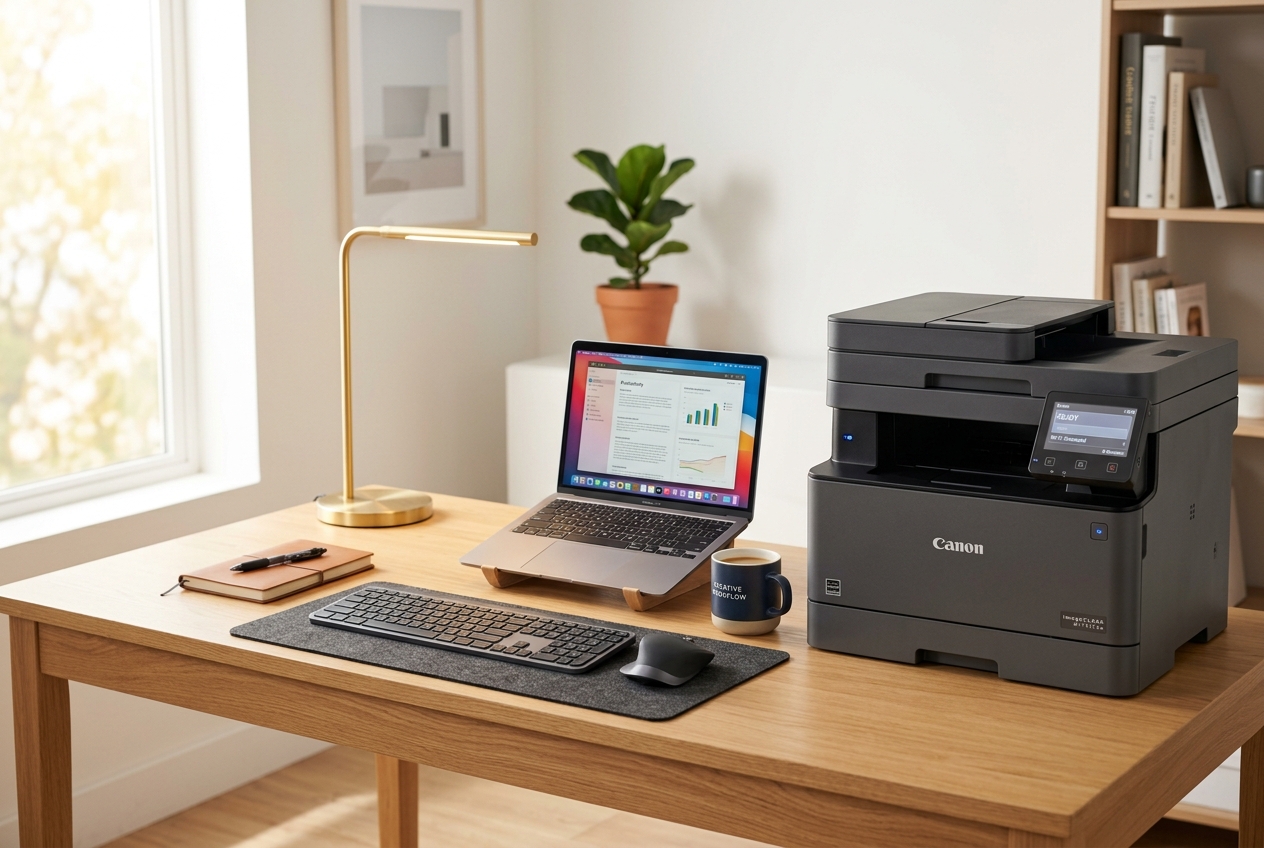 Printers
Printer Setup, Basics & Drivers
Learn how to connect local printers, configure print spooler settings, and fix persistent printer offline status errors.
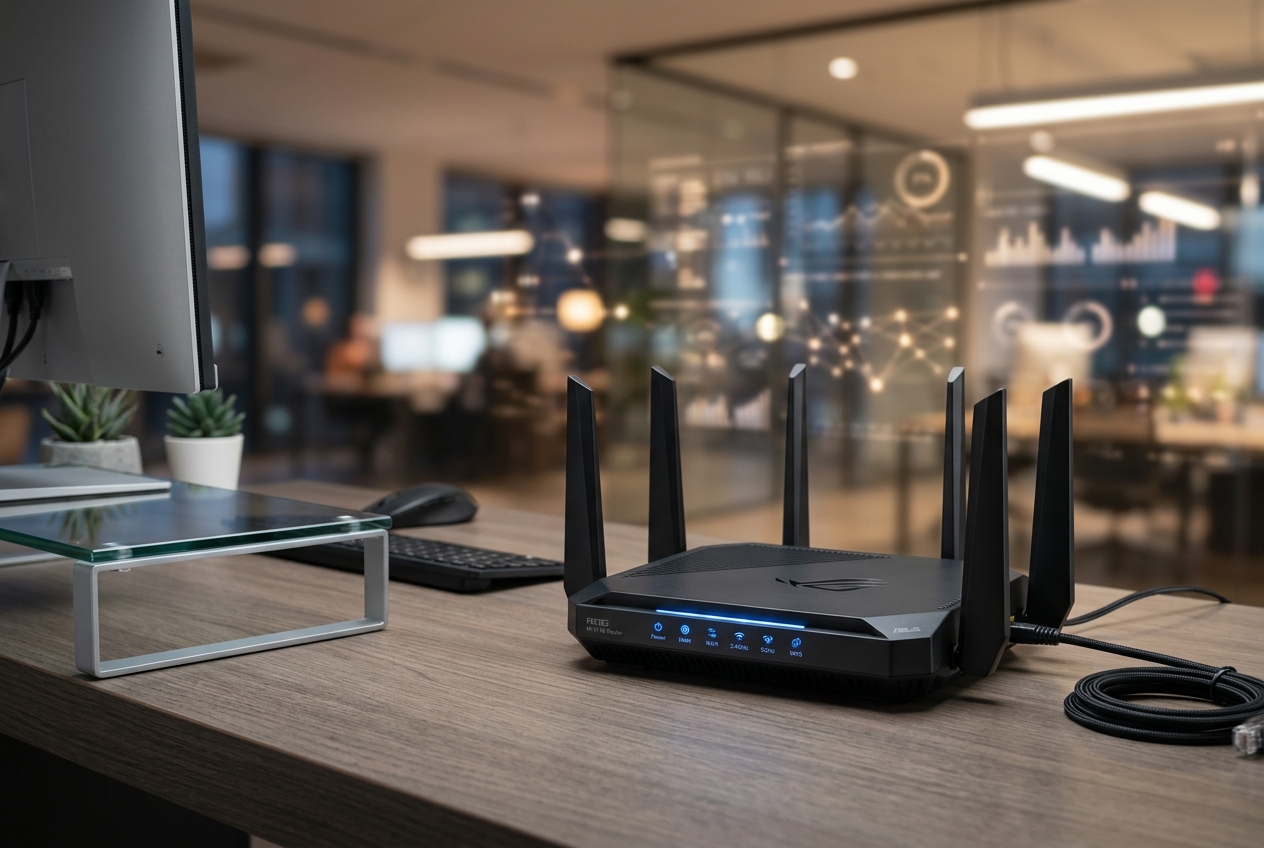 WiFi & Networks
Router, Wi-Fi Settings & Drivers
Step-by-step concepts to log into your router gateway, set up strong security passwords, and troubleshoot network issues.
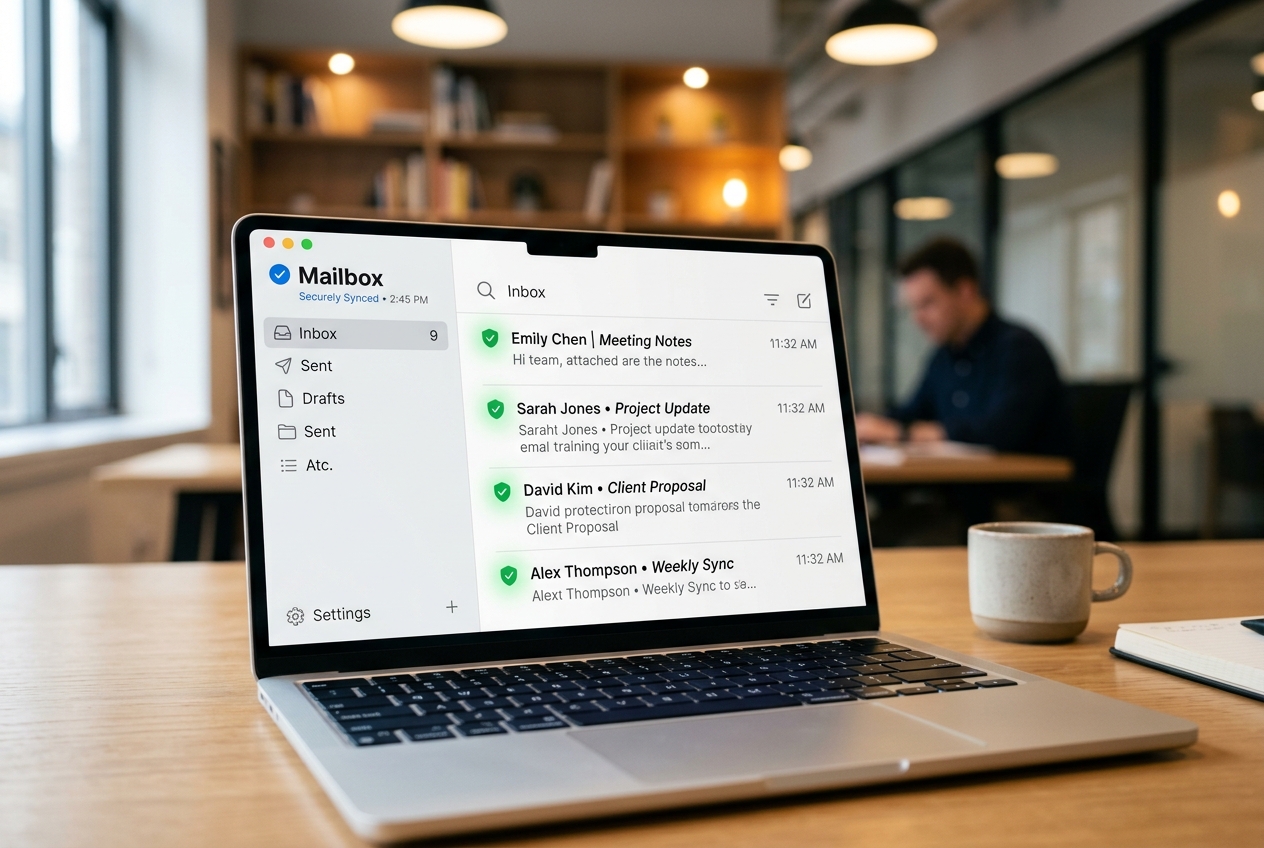 Email Access
Email Basics, Sync & Drivers
Troubleshoot synchronization issues, configure secure incoming/outgoing server ports, and setup email applications.
 Slow PC Fixes
PC Performance, Speed & Drivers
Optimize background tasks, manage system startup files, free up hard disk storage space, and boost overall computer speed.
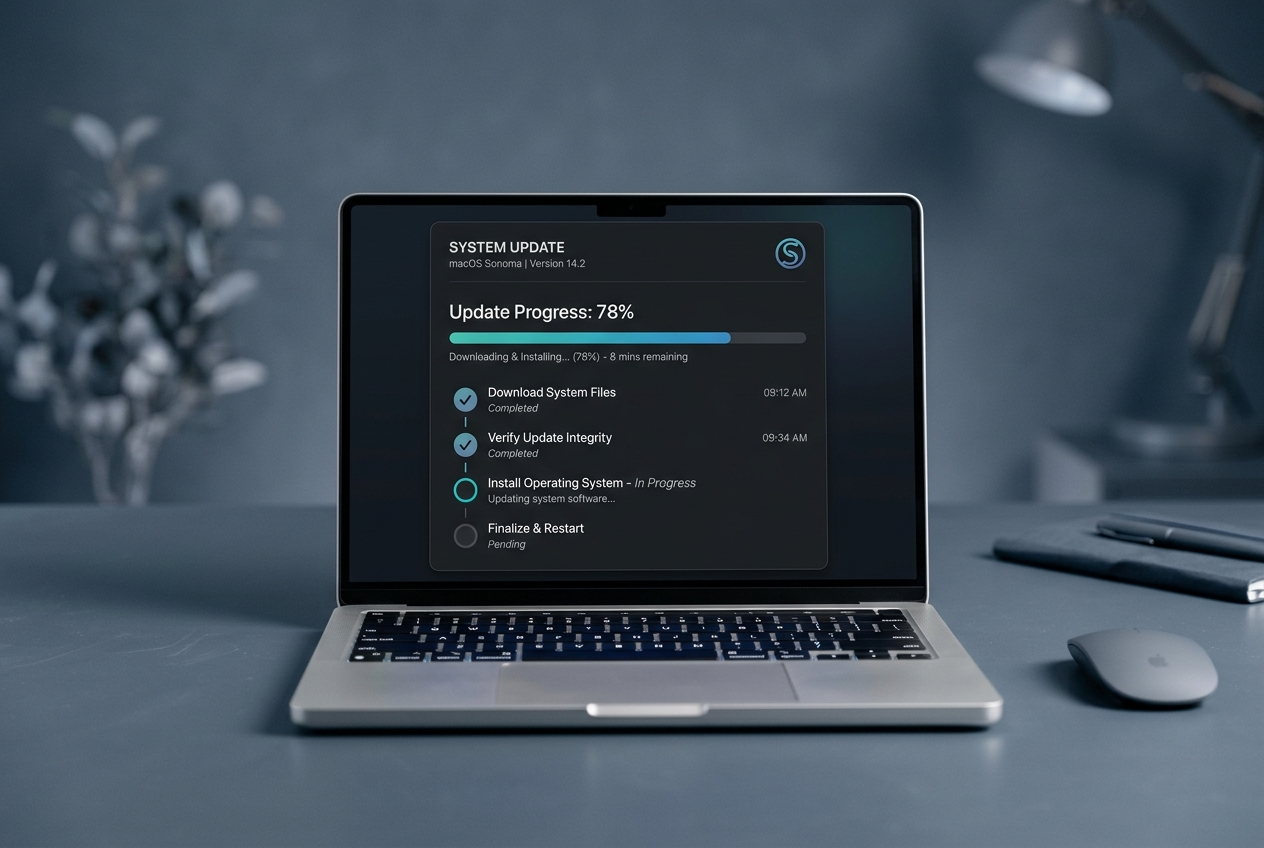 System Updates
Windows OS Updates & Drivers
Understand common update screen messages, review patch logs, and configure update installation schedules safely.
 Search Engine
Search All Tech Guides
Didn't find what you need? Use our interactive search tool to instantly search our entire library of step-by-step tutorials.
Interactive Device Diagnostics
Select a topic below to view real-time diagnostic pathways, Command Prompt scripts, and step-by-step connection workflows.
How printer driver setup works
Follow these simplified diagnostic steps to configure your local connections, inspect spooler settings, and resolve persistent printer offline status errors.

Check Cables & Wi-Fi
PHYSICAL LINKInspect physical USB printer cables or verify network router SSID pairing logs to ensure connection signal lines are active.
Clear Spooler Queue
REGISTRY RUNStop the Print Spooler service via services.msc, then delete temporary logs inside the PRINTERS cache directory.
Download OEM Driver
INF MANUALSAccess matching printer model portals and retrieve the official manufacturer installation INF package configuration files.
Reset Spooler & Print
net start spoolerRe-initialize the print spooler service via Command Prompt, connect hardware lines, and execute a document test page.



Diagnostic Command Terminal
Select a device group and choose your diagnostic issue. Our terminal tool will output the exact Windows Command Prompt script, explanation, and resource guide link.
Printer Diagnostic Utilities
Troubleshoot spooler queues & offline status.
Stops the spooler service, purges all pending/corrupted print documents inside the spool queue directory, and restarts the spooler to restore printer communication.
A simple place to learn device basics.
Trippy Guide shares easy reading guides about printers, routers, email sync, PC performance, and Windows updates. Every article is written for learning only, without technical pressure or support-style claims.
Concept-First Explanations
We explain what settings, alerts, and device messages usually mean in simple, everyday language.
Independent Learning Library
Our content is created strictly as an educational reference, not as phone support or repair service.
No Downloads or Remote Access
We do not provide software files, remote access utilities, paid tool packages, or direct device repairs.
Structured Reference Scope
Our reference guides detail printer settings, local Wi-Fi router setup, email sync ports, PC optimization, and Windows Update diagnostics.
Educational Disclaimer
Trippy Guide is an independent learning blog and is not affiliated with, endorsed by, or representing any device manufacturers or official support services.

Frequently Asked Questions
Select a query on the left to see the instant conversational breakdown and official source documentation path.
Guiding Pilot Assistant
Verified Reference AgentAbout Windows driver documentation
Simple reading guides for common device topics.
Explore educational articles about printers, Wi-Fi router setup, email sync ports, slow computers, and Windows update messages.
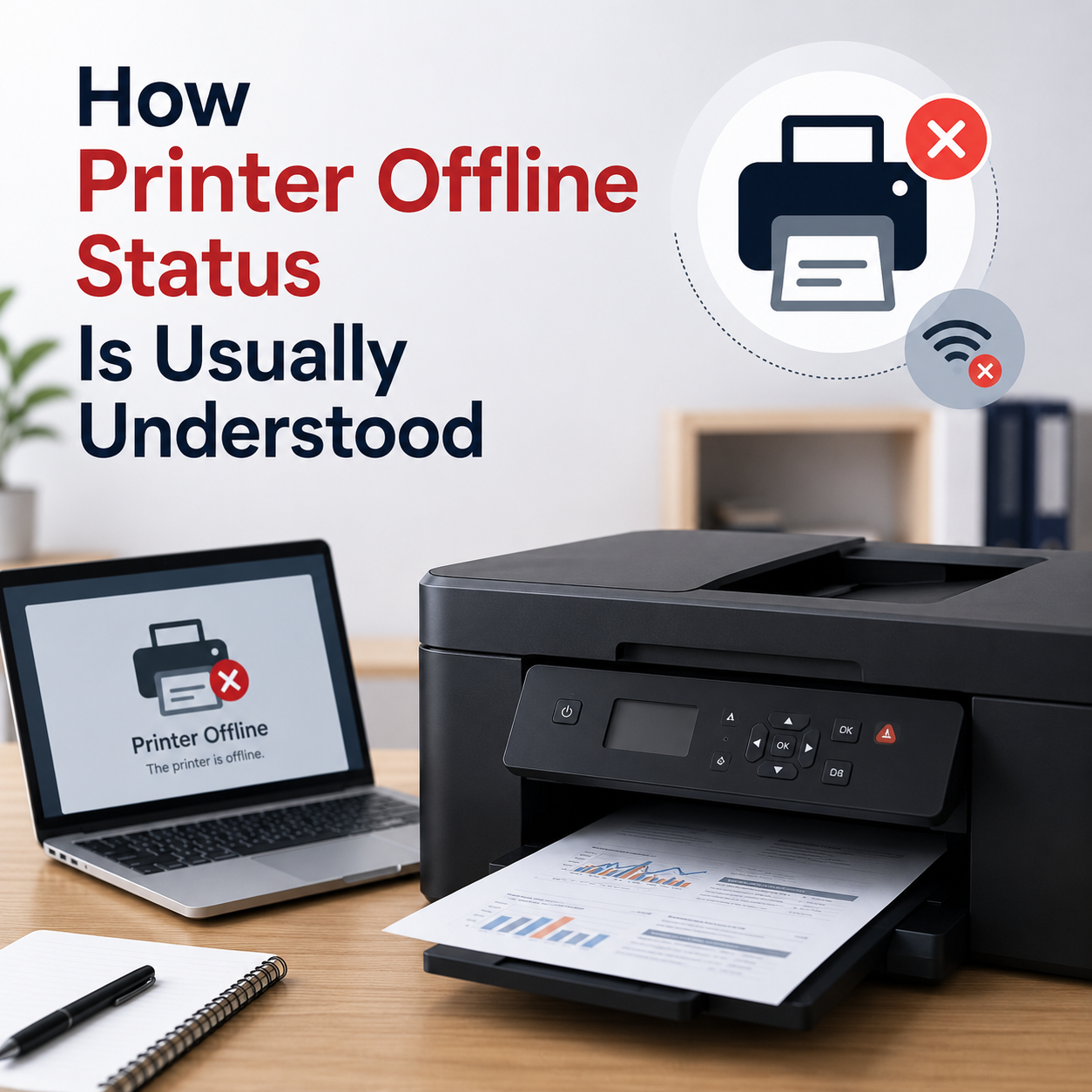
How Printer Offline Status Is Usually Understood
When your computer reports a printer offline status, it indicates that the system is unable to establish an active, bi-directional data connection with the hardware spooler. This state can stem from simple physical interface disconnects to deep network gateway IP conflicts. In this comprehensive guide, we unpack the diagnostic layers that influence device status—covering physical link pathways, print spooler configurations, Windows default status routing, Wi-Fi network handshakes, and official OEM driver configurations.
Offline Status Meanings
Learn why printer status changes from active to offline inside Windows settings.
Spooler Lockups
Understand how stuck documents and spooler cache files block printer signals.
Wi-Fi Connection Paths
Diagnose local wireless gateway mismatch and router connection drop logs.
OEM Driver Setups
Learn how manufacturer setup profiles align with device port settings.
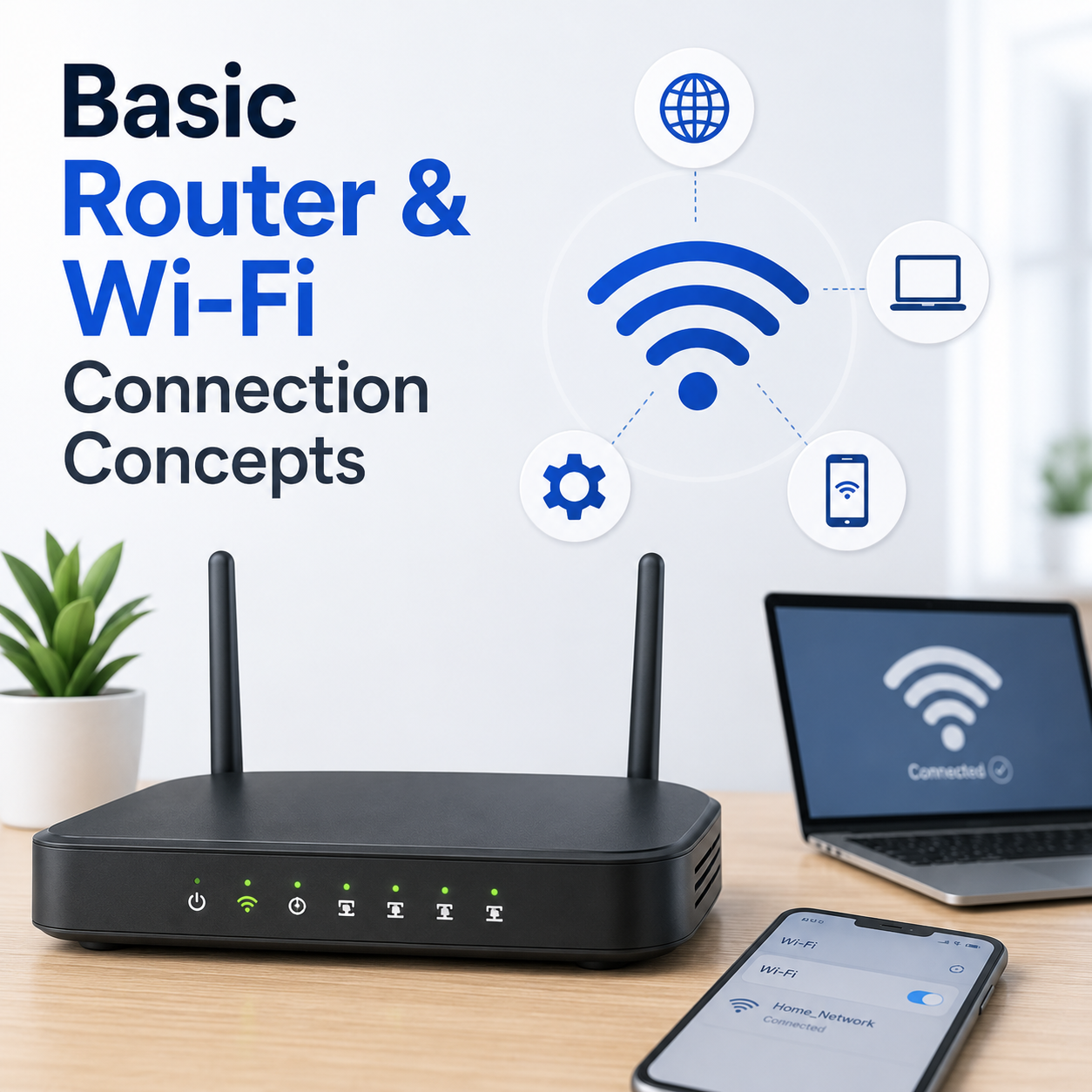
Basic Router and Wi-Fi Connection Concepts
Understand network names, Wi-Fi signals, router lights, connection status, and common limited connectivity messages.
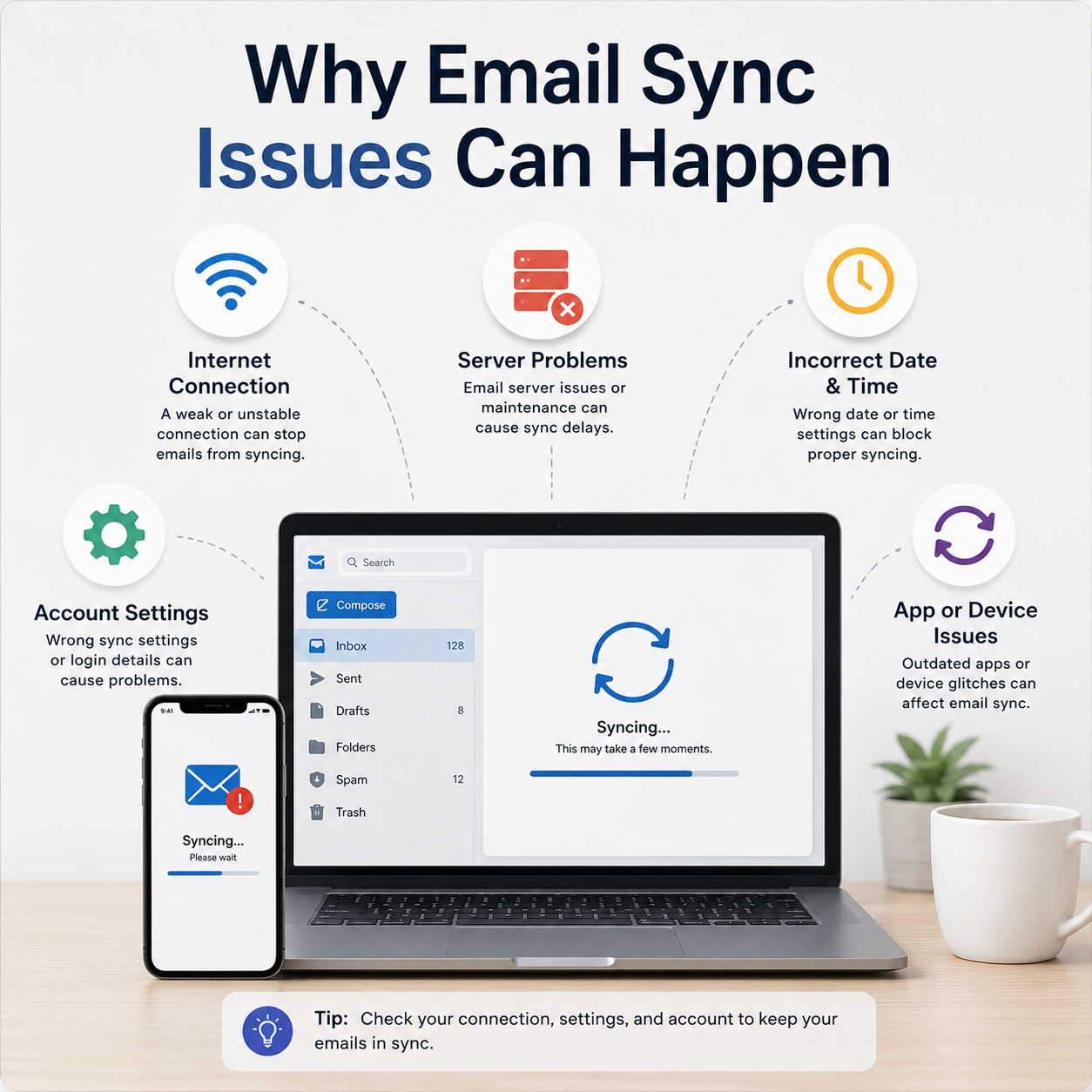
Why Email Sync Issues Can Happen
Read how inbox folders, account access, sync settings, spam folders, and mail app behavior are commonly understood.
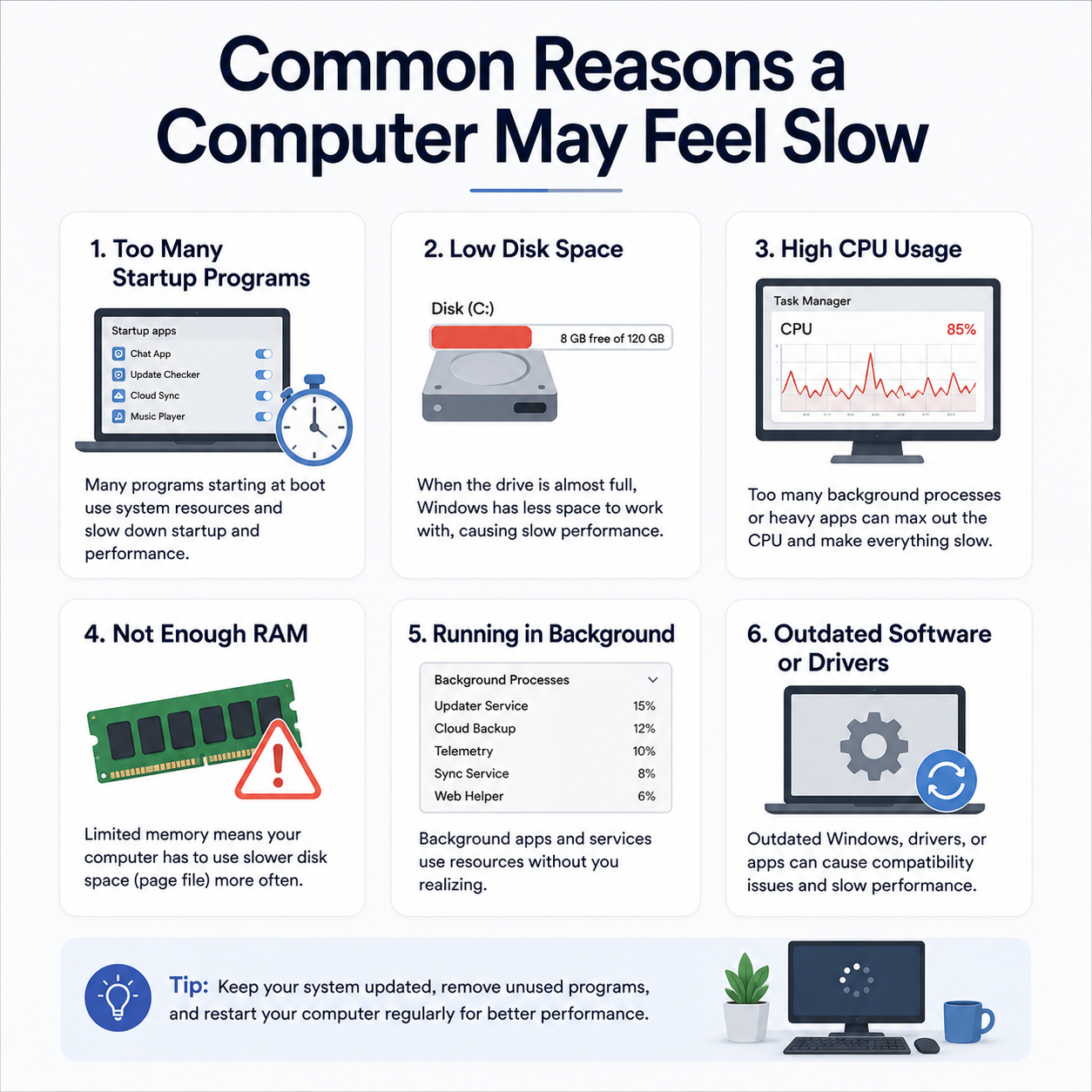
Common Reasons a PC May Feel Slow
Learn common concepts behind startup items, storage space, background activity, updates, and device driver behavior.
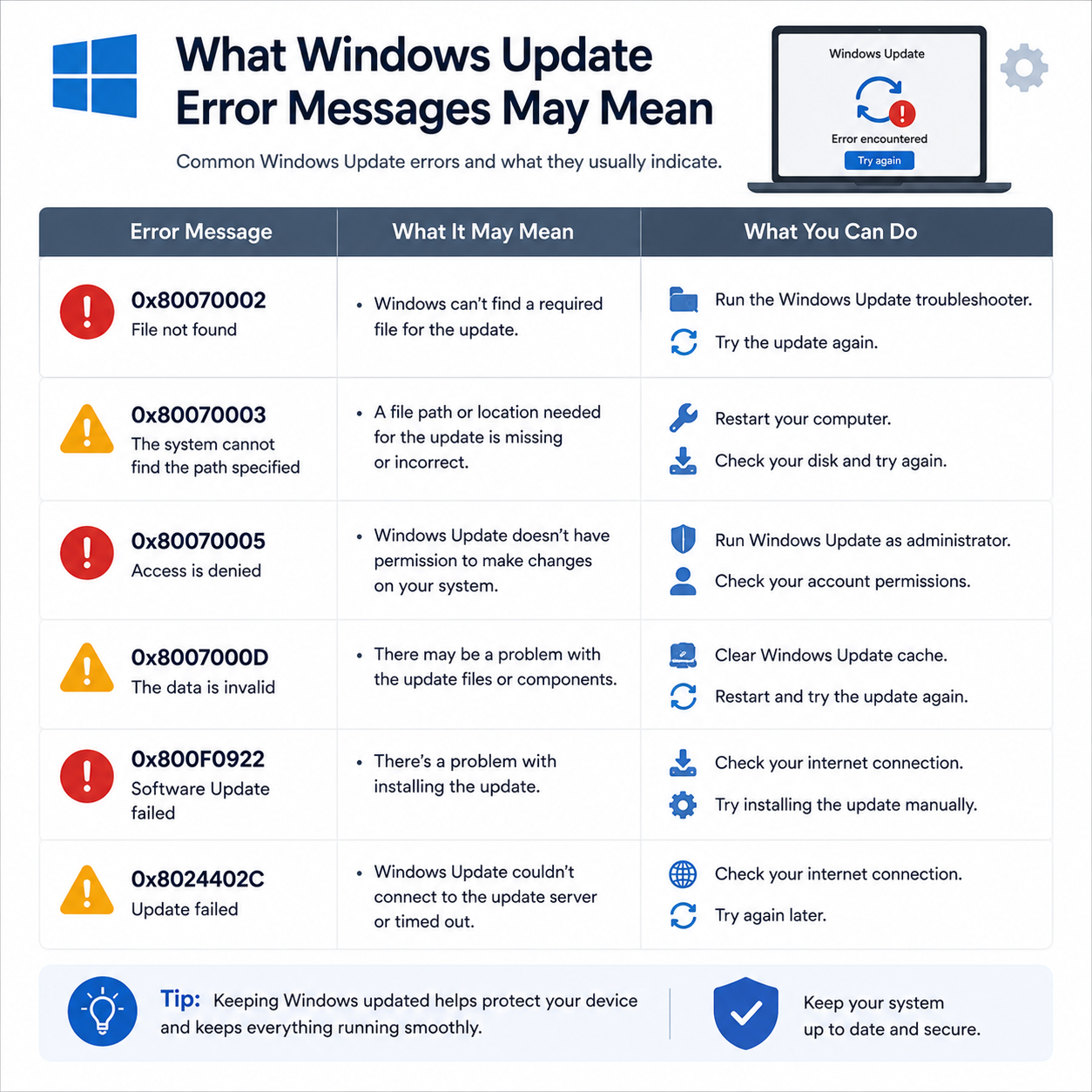
What Windows Update Error Messages May Mean
Understand update status, pending messages, restart prompts, update history, and common update-related terms.